Share a game’s numbers with a link
New
Let a buyer, investor or partner see your game in My Games, see when they look, and stop it at any time.
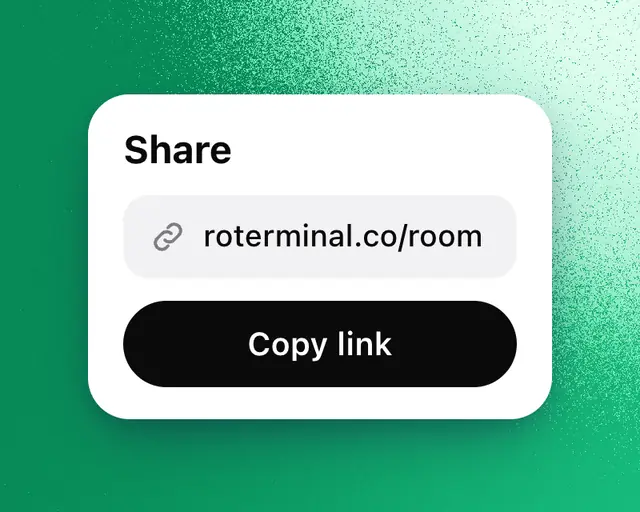
You can let anyone see one of your games in My Games exactly as you do, Robux included: a buyer, an investor, a partner or someone you spoke with on a call. You see when they look, and you can stop it at any time.
Share with a link
- Open My Games and pick the game in the games list at the top. Pick several to share them together.
- Tap Invite at the end of the top row.
- Tap Copy link (on a phone, Send link) and send it on Discord, by email or in a call.
Whoever opens the link signs in, agrees to keep what they see private, and finds the game in their My Games. You get a notification when someone joins from your link.
Add someone by name
- In the same sheet, type their Roblox name in Add by Roblox name.
- Pick Can view, or Part owner for someone who owns part of the game with you. Part owners can share it too.
- Tap the button with their name. If they're not on RoTerminal yet, they get access when they sign in with that Roblox account.
Before any number shows, they're asked once to keep it private.
See who looked
Under Who has access, each person shows when they last looked ("Hasn't looked yet" until they do), when their access ends, and how they came in, such as From your link. You get a notification the first time each person opens the numbers.
Change or stop access
Tap the person's access, such as Can view, to open its menu:
- Make part owner or Make view only
- Ends in 7 days, Ends in 30 days or No end date
- Remove: their access stops at once. To give it back as it was, tap Undo in the message that appears.
Turn the link off
Tap Turn off beside the link. No one new can join from it. People already in keep access until you remove them.
Tip: On the game's page, Manage then Invite your team opens the same sheet.