Your Watchlist
New
Keep the games, studios and trends you follow in one place, with how each one moved today.
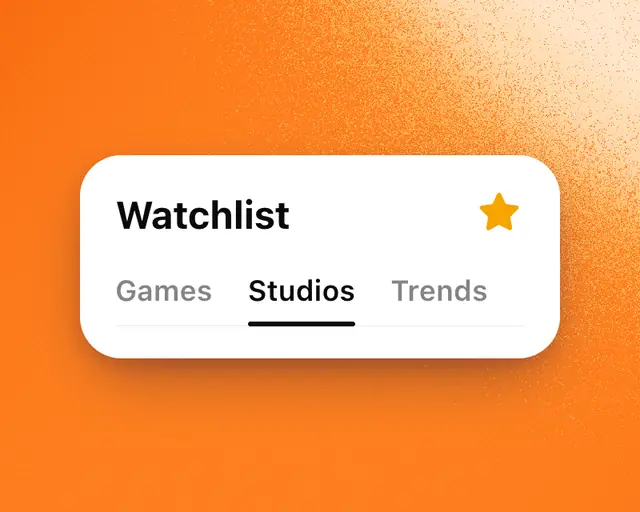
Your Watchlist keeps everything you follow in one place, with its live numbers. Open Terminal → Watchlist. It has three tabs: Games, Studios and Trends.
Add a game
- Open the game’s page.
- Tap Watch. It changes to Watching.
While your Watchlist is empty, it suggests the biggest games: tap Add beside one. If you’re signed out, you’re asked to sign in first, and the game is added when you’re back.
To take a game off, open its page and tap Watching. Tap Undo if you change your mind.
Follow a studio or a trend
- A studio: open its page and tap Follow. It appears under Studios.
- A trend or a genre: open its page and tap Follow. It appears under Trends.
Following a studio is quiet until you turn on its bell, which takes Follow’s place. A trend or a genre alerts you about its new games from the start. See Genres and trends.
Views
Each tab has views to look at what you follow in different ways.
| Tab | Views |
|---|---|
| Games | All, Rising, Falling, Updated |
| Studios | All, Rising, Falling, New games |
| Trends | All, Growing, Shrinking |
Rising and Falling compare with this time yesterday. Updated shows the games that updated this week, newest first. New games shows the studios that put out a game this month. Growing and Shrinking compare a trend’s new games with the month before.
Games has an Earnings column and view on every plan: the Robux each game makes a month, our estimate or its owner’s own number. See What a game earns.
Alerts for games you watch
A game you watch starts at Big moments: you hear about its records, reaching the top 10 and big changes in players. To change what you hear, see Alerts for a game.
How many games it holds
There’s no limit on how many games your Watchlist holds, on any plan, Free included.