Your details
Your legal name, email and country, kept in one place and used to fill in agreements, payouts and checkout.
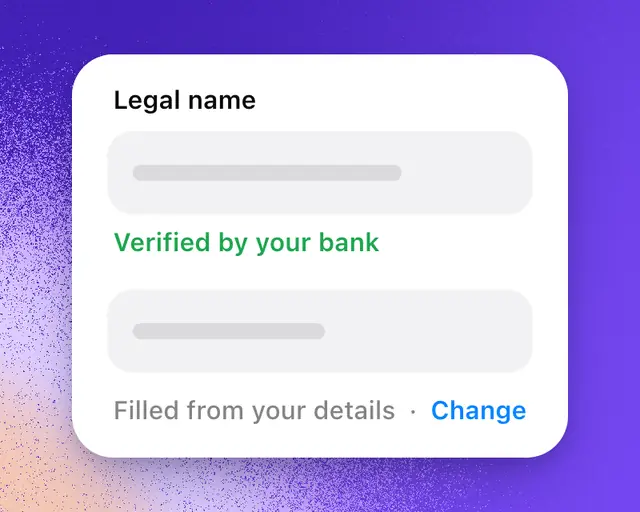
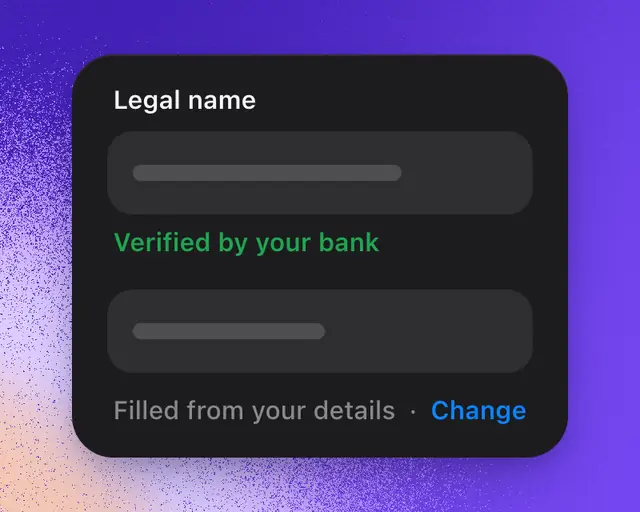
Your details are the facts that agreements, payouts and checkout ask for: your legal name, an email and your country. You keep them in one place, and every form that needs them is filled in for you.
Change your details
- Open Settings, then Account.
- Scroll to Your details.
- Type in a field, then press Return or tap outside it. A tick shows by its name once it's saved.
| Field | What it's for |
|---|---|
| Legal name | Your name as it is on your ID. It goes on the agreements you sign. |
| The email for your agreements and receipts. | |
| Country | Where you live, for tax on invoices. |
| Province | Shows only when your country is Canada. |
| GST/HST number | Shows only when your country is Canada. Optional. |
Why some are already filled in
They're filled from what you've already given RoTerminal: the last agreement you signed, your plan's billing, where Clips pays you, and the email you sign in with. What you type always wins, and a field you clear stays empty.
Where they're used
- Signing an agreement to buy or sell a game.
- Setting up payouts, where Stripe's form opens with your name and email.
- Paying for a plan, where checkout opens with your details.
A form filled from your details says "Filled from your details · Change". Tap Change to edit them on the form. What you sign with becomes your details.
Verified by Stripe
Verified by Stripe under Legal name means Stripe checked who you are when you set up payouts, and the name it has is the same as yours here.
Where you're paid
If you've set up payouts, Where you're paid shows under Your details: how Clips and game sales pay you. Tap the row to change it.
Important: Your details are private. Your legal name shows only on the agreements you sign, which the other side of the deal sees.